
How-to8 min read
How to set up an AI calling campaign in Vaani, step by step
This guide walks through a first Vaani campaign from an empty account to a ranked list of hot, warm and cold leads in Excel. Every step matches the dashboard as it works today, and the screenshots come from a test copy of the dashboard filled with sample data: the business "Sunrise Homes", its projects and every lead and call shown are made up for illustration.
Set aside about half an hour. You will need four things: the facts you want Priya, Vaani's voice assistant, to use; a one-sentence greeting; your leads, or a way to send them; and the phone number of the person who should take live transfers.
Step 1: Create an account and find your way around
Create an account with your name, business name, email and a password, then sign in. New accounts see a short checklist on the Overview screen that follows the same order as this guide: create a campaign, run a free test call, add leads, add balance, and start.
The sidebar has two groups. Sections are the kinds of call Vaani makes: Outbound sales, Lead follow-up, Purchase / closing, Inbound, Customer relations, Customer service, After-sales service, Payment reminders, Surveys and feedback, and Order verification. Records hold your Calls, Leads, Billing, DND list and Settings. For new enquiries from ads and forms, start in Lead follow-up: its campaigns are continuous, which means they keep waiting for new leads instead of stopping when a list is finished.
Step 2: Create the campaign and write the prompt
Open the section and press New campaign. The form asks for a kind (preset from the section; it decides which outcomes Vaani reports), a campaign name, a prompt and a greeting.
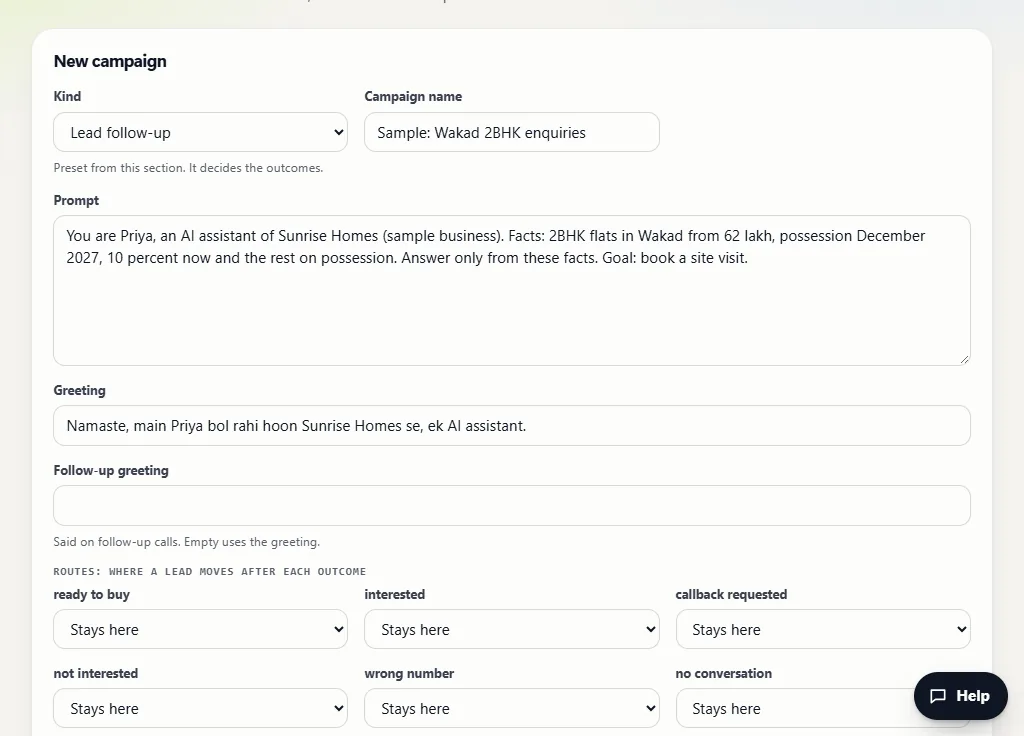
The prompt is where you tell Priya who she is calling for and what she may say. She answers from these facts and does not invent prices, discounts or promises; when she does not know something, she says the team will share the detail. A good prompt is short and specific:
- Who and why: "You are Priya, an AI assistant of Sunrise Homes. You are calling people who enquired about our Wakad 2BHK project."
- The facts: configuration, starting price, possession date, payment plan, location, timings for visits. Only include what you are happy for her to say on every call.
- The goal: "Book a site visit and confirm the day and time."
- Limits: "Do not discuss discounts. For loan questions, say our team will call back."
For education, the facts might be courses, eligibility, fees and counselling slots; for financial services, the products, the documents needed and how to book time with an advisor. Keep anything you cannot confirm out of the prompt.
Step 3: Write the greeting
The greeting is the first sentence of the call. Keep it short, say who is calling and from which business, and make clear it is an AI assistant, for example: "Namaste, main Priya bol rahi hoon Sunrise Homes se, ek AI assistant." Two placeholders help: {name} inserts the lead's name, and {notice} marks where the recording notice goes. When calls are recorded and you leave out {notice}, Vaani adds the notice at the end of the greeting, before any closing question.
The optional follow-up greeting is said on follow-up calls; leave it empty to use the main greeting. Further down the form you can set the maximum number of follow-ups and the follow-up days, a transfer number (or use the account default), the call category (promotional, service or transactional), the language and voice, what happens when the list is done, an optional WhatsApp template, Facebook lead form IDs, and whether calls are recorded. Save the campaign.
Step 4: Run a free test call
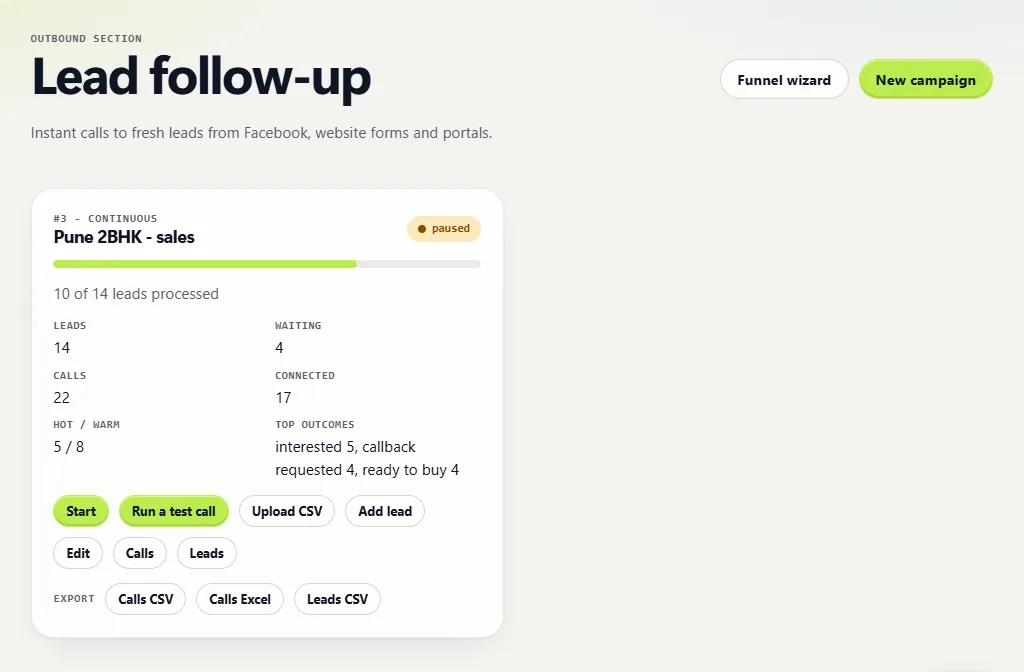
Your new campaign appears as a card. Before any real phone rings, press Run a test call. Priya talks to a simulated customer using your prompt and greeting, and you see the conversation as a transcript with the lead score it would get. No phone is dialled.
Read the transcript the way a customer would hear it. Did she answer the question that was asked? Did she use a fact you forgot to give her, or say "the team will share that" too often? Edit the campaign, tighten the prompt and run the test again. There is a daily limit on test calls, so change one thing at a time.
Step 5: Add your leads
There are four ways in, and you can use all of them on the same campaign:
- Upload CSV. The file needs a phone column (headers such as phone, mobile or number work); name and email are optional, and other columns are kept with the lead. After the upload, the card tells you how many leads were added, how many were already there and which rows were rejected.
- Add lead. Type one name and phone number by hand, useful for a walk-in or a quick test with your own number.
- Website forms and automation tools. Each campaign accepts leads on a webhook: a JSON post to
/campaigns/{id}/leadswith any keys, as long as one of them holds the phone number. Website forms, Zapier, Make, Pabbly, n8n, Google Sheets and property portals can send leads this way. It is authenticated with your account's key; if you do not have one yet, ask from Help. - Facebook and Instagram lead ads. Put the lead form IDs on the campaign, and leads from those forms arrive through Meta's webhook as they are submitted. Your page needs to be connected once; ask from Help if it is not.
Step 6: Check your settings, then add balance
Open Settings before the first real call. Set the transfer number and transfer hours so that callers who want a person can be connected live to your team; outside those hours no transfer is attempted. Add a Telegram chat ID and a sales email so hot leads, escalations and transfers reach your team as alerts. Keep Check DND before calling switched on for promotional campaigns; numbers on the DND register are then blocked for those calls and show as "dnd blocked" on the Leads screen.
Calls are billed per minute from a prepaid wallet, with no seats or salaries. There is no online payment yet: ask from Help at the bottom right of the dashboard and the team adds balance for you. The pricing page explains how to ask for your rate.
Step 7: Start the campaign
Press Start on the campaign card. Priya calls your leads within calling hours; a lead who enquires at night is called the next morning, and unanswered calls are retried later within the same hours. The progress bar and counts on the card update as leads are processed. Press Stop at any time to pause. On continuous campaigns, new leads from your forms and ads are called within a minute of arriving, inside calling hours.
Step 8: Read the results
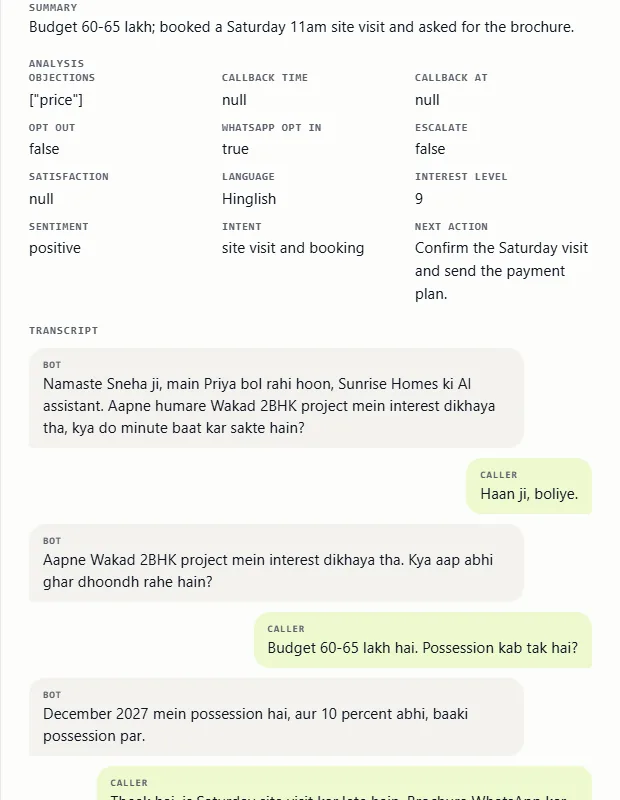
Open Calls (or the Calls button on the card) to see every call with its status, duration, outcome and lead score. Filter by campaign, status, lead score or outcome to find what you need, for example only the hot leads from this week's campaign.
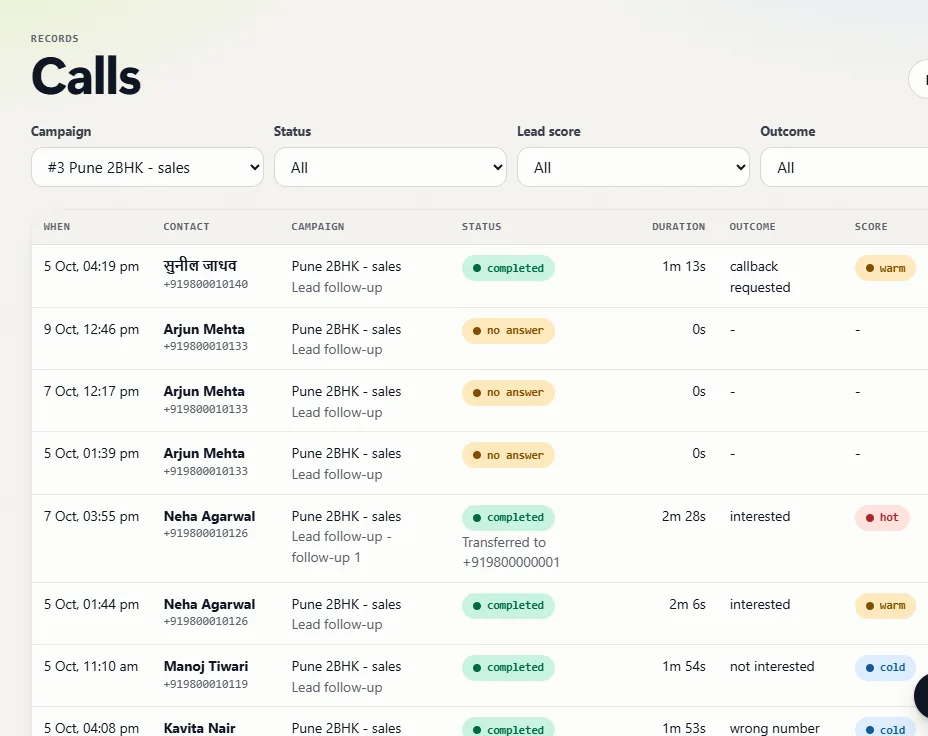
The score tells your team what to do next:
- Hot: ready now. Call back today.
- Warm: interested, needs time. Follow-ups continue on your schedule.
- Cold: not now. Closed politely, with no wasted calls.
Click any call to open its details: the summary, the analysis (objections, callback time, interest level, sentiment, WhatsApp opt-in, whether to escalate and the next action), the full transcript, and the recording when calls are recorded.
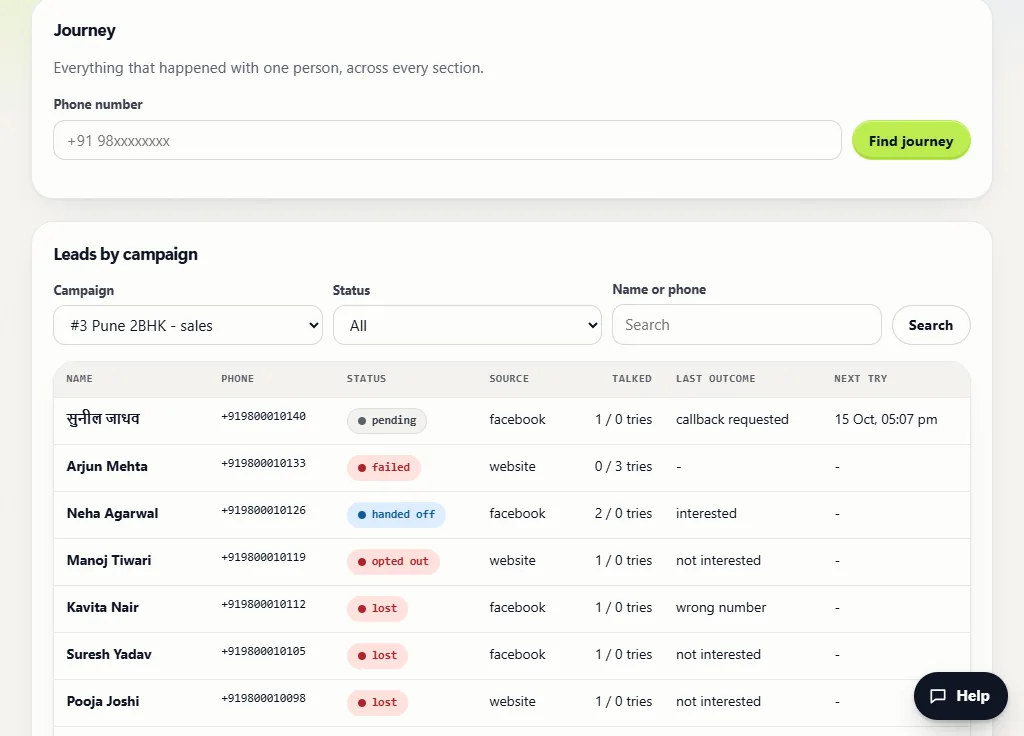
The Leads screen shows where each person stands: pending (more calls to come), won, lost, opted out, handed off to your team, failed after all attempts, or dnd blocked, with the source of the lead and the time of the next try. Search a phone number under Journey to see everything that happened with one person, across every section.
Step 9: Export to Excel
The Export row on each campaign card downloads Calls Excel or Calls CSV (every call with its outcome, score and summary) and Leads CSV (every lead with its status). The Billing screen has a spend ledger you can download as CSV. Use the Excel file for your weekly review, or to load results into your CRM.
Step 10: Improve the campaign every week
Once a week, read five transcripts from each score band. Look for questions Priya could not answer and add those facts to the prompt; look for objections that keep coming back and give her a factual reply; check that hot leads were called back the same day by your team. Small changes to the prompt and greeting, tested with a test call first, make the biggest difference.
Want the bigger picture first? Read how Vaani works, our guide to responding to enquiries fast, or the decision guide on AI calling and telecaller teams. More how-tos are in Learn, and you can create an account to try the first steps today.
Sources
- The Vaani dashboard and API as of 12 October 2026. Screenshots were taken from a local test copy loaded with Vaani's built-in sample data; no real customers, leads or calls are shown.
- Telecom Regulatory Authority of India, The Telecom Commercial Communications Customer Preference Regulations, 2018, on DND preferences for commercial calls: trai.gov.in (PDF)