
Setup guide
Start with Vaani in 30 minutes.
तीस मिनट में वाणी शुरू कीजिए, एक-एक छोटा कदम।
You bought Vaani. This page takes you from a new account to your first live calls, one short step at a time. No technical knowledge needed: you copy a few values from Meta into Vaani, and Vaani does the rest.
- 10short steps
- About 37 minof clicks
- Day onecalls work from the start
The map
Ten steps, from a new account to live calls.
नए अकाउंट से लाइव कॉल तक, दस कदम।
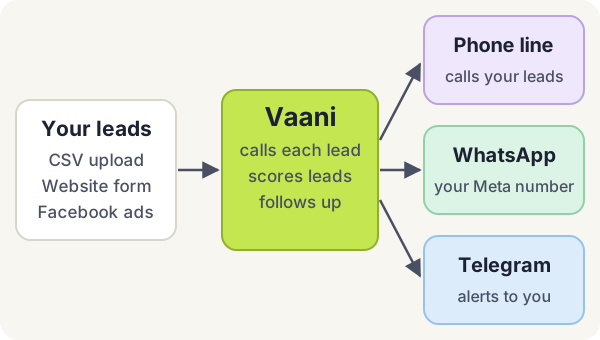
- Your Vaani account2 min · Vaani
- Your phone line1 min · Vaani
- WhatsApp in Meta10 min (plus Meta's review) · Meta Business Suite, Meta for Developers
- Token and IDs5 min · Meta Business Suite, then Vaani
- Webhook3 min · Vaani, then your Meta app
- Message templates5 min (review up to 24 h) · Vaani or WhatsApp Manager
- Telegram alerts2 min · Vaani, then Telegram
- First campaign5 min · Vaani
- Test call2 min · Vaani, your phone
- Go live2 min · Vaani
About 37 minutes of clicks. Meta's checks (business verification, display name, templates) can take from a few minutes to a few working days; you can make calls while you wait.
Checklist
Before you start
शुरू करने से पहले ये चीज़ें तैयार रखें।
5 minutes to collect. Keep these open in one place.
A laptop or desktop with Chrome or Edge. Meta's setup pages are hard to use on a phone.
A Facebook login for the business owner or an admin. Use a real, long-standing personal profile: new or fake profiles get blocked.
A phone number for WhatsApp that is not on the WhatsApp or WhatsApp Business app, and that can receive an SMS or a voice call for a 6-digit code. A number already on the app must be deleted from the app first (see FAQ).
Documents for Meta business verification, all with the same legal business name and address: GST certificate, Udyam (MSME) certificate, certificate of incorporation, shop and establishment licence, or a recent utility bill or bank statement in the business name.
A website on your business domain that shows the same business name, and a business email on that domain if you have one. A privacy policy page on the site helps.
A way to pay Meta for WhatsApp messages: a debit or credit card, or, for Indian businesses, Meta's prepaid balance topped up by UPI or net banking. Meta bills you directly, not Vaani.
Telegram on your phone, for lead alerts.
A short lead list to start with: a CSV or Excel file with a phone column, or 5 to 10 numbers of your own team for testing.
1 Your Vaani account
- Choose Start with Google to create your account, or sign in with the login the Vaani team gave you.
- You land on Get started: a checklist of the steps on this page. Each step has a How? link back here.
- Open Settings and check your business name and sales email. Lead emails go to that address.
2 Your phone line
- Open Connections. The Phone line card says Managed by Vaani and shows the number your customers will see.
- Nothing to set up: Vaani's line is ready on day one, and calls only go out inside permitted calling hours.
- Want calls to show your own business number? Ask the Vaani team; they connect it for you.
3 WhatsApp in Meta
Vaani sends WhatsApp messages from your own WhatsApp business number, through Meta's official WhatsApp Cloud API. You create that number in Meta once. Menu names below are Meta's as of October 2026; Meta moves things now and then, so look for the same words if a button has moved.
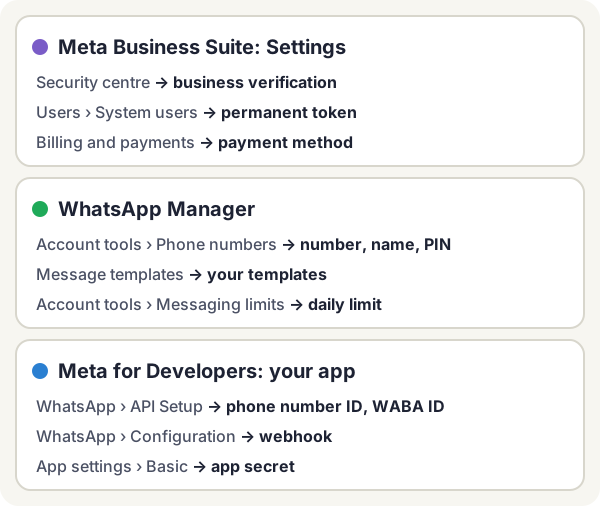
3a. Business portfolio (2 min)
- Go to business.facebook.com and log in with Facebook.
- If you have no business portfolio yet, create one: your legal business name, your name and your business email.
3b. Business verification (3 min, review takes 1 to 5 working days)
- In Meta Business Suite open Settings › Security centre › Start verification.
- Enter the legal name, address, phone and website exactly as they appear on your documents, then upload one document.
- Confirm by the code Meta sends to your business email, phone or domain.
You do not have to wait. Before verification you can message up to 250 people a day and register up to 2 numbers. Verification raises that (see FAQ).
3c. Create a Meta app with WhatsApp (3 min)
- Go to developers.facebook.com/apps and choose Create app.
- App name: your business name plus "Vaani" (for example "Sharma Classes Vaani"). Contact email: yours.
- Use case: Connect with customers through WhatsApp. Business portfolio: the one from 3a. Finish.
- Open Customize use case (or WhatsApp in the left menu) › Quickstart › Start using the API. Meta creates your WhatsApp Business Account (WABA) and a free test number.
3d. Add your real phone number (3 min)
- On API Setup, under step 5 or the From number list, choose Add phone number. You can also do this in WhatsApp Manager › Account tools › Phone numbers › Add phone number.
- Fill in your business profile and the display name customers will see (rules below).
- Enter the number, choose Text message or Phone call, and type the 6-digit code.
- Set a 6-digit two-step verification PIN when asked and write it down. You need it to move or delete the number later.
Display name rules (Meta reviews the name, usually within a day):
- It must match your business name, or the brand shown on your website. "Sharma Classes" for Sharma Classes, not "Best Coaching Delhi".
- Normal capitals: "Sharma Classes", not "SHARMA CLASSES" (all capitals only for a real acronym such as "ABC Motors").
- No emojis, extra punctuation, ™ symbols, phone numbers or website addresses. At least 3 characters.
- Not a person's name alone, and not generic words alone ("Offers", "Sales Team").
3e. Payment method (2 min)
- In Meta Business Suite open Settings › Billing and payments (WhatsApp Manager also shows an Add payment method prompt).
- Add a card in the business name, or (in India) choose the prepaid option and add funds by UPI or net banking. Meta charges per delivered template message; marketing messages cost more than utility messages, and replies inside 24 hours of the customer's last message are free.
Without a payment method, template messages fail even when everything else is right.
4 Permanent token and the two IDs
Vaani needs three values: a permanent access token, your phone number ID and your WhatsApp Business Account ID (WABA ID). Do not use the temporary token on the API Setup page: it stops working within a day.
Make a System User and its token
- In Meta Business Suite open Settings › Users › System users and choose Add. Name it "Vaani", role Admin.
- Select the new user › Assign assets. Under Apps pick your app and turn on Full control (Manage app). Under WhatsApp accounts pick your account and turn on Full control. Save.
- Choose Generate token, pick your app, set expiry to Never, and tick these permissions:
whatsapp_business_messaging,whatsapp_business_managementandbusiness_management. - Copy the token straight away. Meta shows it only once. Treat it like a password.
Find the two IDs
- In your app open WhatsApp › API Setup.
- In the From list pick your real number (not the test number).
- Under it Meta shows Phone number ID and WhatsApp Business Account ID (newer screens may say "Messaging account ID"). Both are long numbers. Copy each one.
Paste them into Vaani
- In Vaani open Connections › WhatsApp.
- Paste the token, the phone number ID and the WABA ID. Optional but recommended: the app secret from your app's App settings › Basic › App secret › Show, so Vaani can check that incoming messages really come from Meta.
- Save. Vaani checks the values with Meta before keeping them, then shows your number, display name and quality. Use Check any time; it sends nothing.
Vaani stores the token and app secret encrypted and only ever shows their last 4 characters.
5 Webhook: let customers' replies reach Vaani
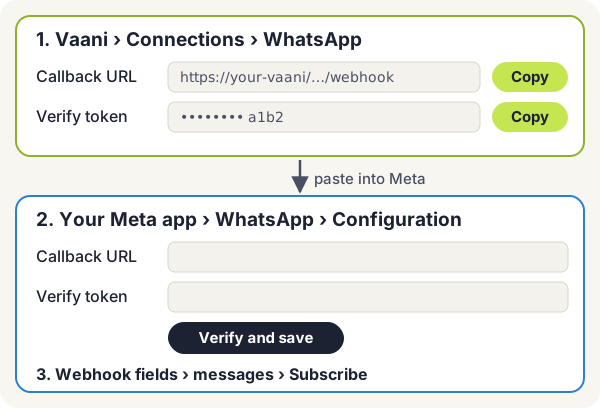
- In Vaani › Connections › WhatsApp, find Callback URL and Verify token. Copy each with its copy button.
- In your Meta app open WhatsApp › Configuration (apps made from the WhatsApp use case: Use cases › Customize › Configuration).
- Under Webhook choose Edit, paste the Callback URL and the Verify token, then Verify and save. A green tick means Meta reached Vaani.
- Under Webhook fields find messages and choose Subscribe.
- Switch the app to Live (the Publish or App mode switch at the top). Meta asks for a privacy policy URL in App settings › Basic first; your website's privacy page works. Some messages are not delivered to apps left in Development mode.
6 WhatsApp message templates
WhatsApp lets a business start a chat only with an approved template. After the customer replies you have 24 hours to chat freely; after that, templates again.
- In Vaani open WhatsApp templates › New template. The preview shows how it looks on the customer's phone.
- Name: lowercase words joined by underscores, for example
visit_details. - Pick the category honestly (table below), the language, the message text and a sample value for every
{{1}}placeholder. - Submit. It shows In review, then Approved or Rejected. Vaani uses only approved templates.
| Category | Use it for | Example |
|---|---|---|
| Utility | Something the customer asked for or a transaction: details they requested on the call, a booking, a reminder | "Hi {{1}}, as discussed on the call, here are the visit details for Saturday." |
| Marketing | Offers, discounts, new products, "come back" messages | "Diwali offer: 20% off admission fees till 5 November." |
| Authentication | One-time passcodes only | Not used by Vaani |
Rules that keep your number healthy
- Opt-in first. Message only people who agreed to hear from you on WhatsApp: on the call ("Shall I send the details on WhatsApp?"), on your form or in person. Vaani sends details only to callers who say yes.
- Utility means utility. If a "utility" template sounds promotional, Meta re-labels it marketing and charges marketing rates.
- Add an opt-out button to marketing templates (a quick reply such as "Stop promotions"). People who block or report you hurt your quality far more than people who opt out.
- Watch the quality rating in WhatsApp Manager: green is good, yellow is a warning, red means Meta may pause the template or lower your limit.
- No cold blasts. Do not send marketing templates to bought or old lists. Meta limits how many marketing messages one person gets, so some may silently not be delivered.
7 Telegram alerts
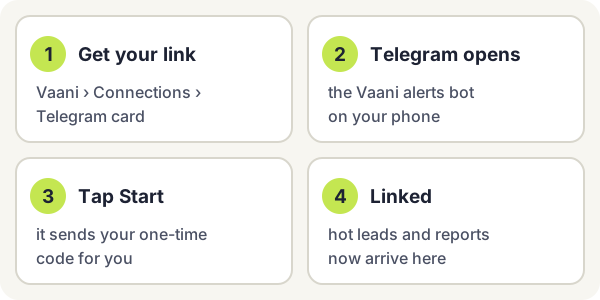
- In Vaani › Connections › Telegram, ask for a link. Vaani shows a one-time code and an Open in Telegram link.
- On your phone, open the link. Telegram opens the Vaani alerts bot.
- Tap Start. This sends
/startplus your code. On a computer you can also send/start YOURCODEto the bot yourself. - The bot replies that the chat is linked. The Telegram card in Vaani now says Linked.
Use a private chat with the bot, not a group. The code works once and expires after a short while; ask for a new one if it does. Send /help in the bot to see its commands, for example /hot for today's hot leads.
8 Your first campaign
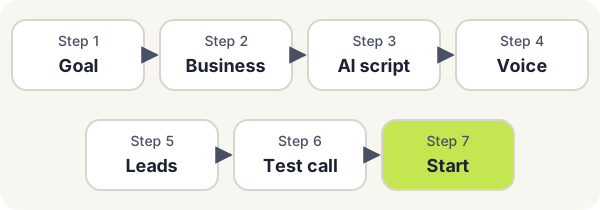
- Goal. Pick what the calls are for, in plain words, for example Call my new leads or Remind customers about a payment.
- About your business. Business name, what you sell, your offer, the languages to speak, and the next step you want (a visit, a demo, a callback). Add true facts only: prices you are happy to share, timings, address.
- AI script. Vaani writes the greeting and the conversation for you. Read it and edit anything that is not right.
- Voice and language. Choose a voice and the main language. Priya switches between Hindi, English and Hinglish when the caller does.
- Leads. Download the sample sheet if you need one, then drag your CSV or Excel file in. The preview shows how many numbers are valid, invalid or duplicates.
- Test call. See the next step.
- Start. See Go live.
9 Test call to your own phone
- Enter your own mobile number and choose Call me. Your phone rings within a minute.
- Talk like a real customer: ask the price, say you are busy, ask for a person. Check that answers are correct and the next step is offered.
- Afterwards, open the call in Calls: the transcript, the hot, warm or cold score and the summary are there. If something was wrong, edit the script and call again.
Up to 5 test calls to your phone a day. They are real calls, so they use a little balance. A text-only practice chat is also available on the campaign page and costs nothing.
10 Go live
- Balance. Calls are billed per minute from a prepaid wallet. Check Billing; the Vaani team adds balance once your rate is agreed (contact us).
- Settings check. For promotional calls keep Check DND before calling on. Calls go out only inside calling hours (10:00 to 19:00 by default).
- Start. Choose Start. Vaani calls new leads within a minute, retries missed calls and schedules follow-ups.
- Watch the first ten calls in Calls and on Telegram, then adjust the script if needed. A campaign pauses by itself if the balance runs out, and you get an alert.
Facebook and Instagram lead ads
Each new lead from your Facebook or Instagram lead form can reach the right campaign automatically and get a call within a minute. For now a Vaani team member connects your Facebook page for you: contact us with your page name and the campaign it should feed. You need to be an admin of the page.
Troubleshooting
Problems and FAQ
कोई दिक्कत? ज़्यादातर का हल यहीं है।
Most problems have a quick fix. Find yours below, or use the help button at the bottom right.
My number is already on WhatsApp. Can I use it?
Yes, after you remove it from the app. On the phone open WhatsApp (or WhatsApp Business) › Settings › Account › Delete my account, back up chats first if you need them, wait a few minutes, then add the number in Meta. Chats on the phone do not move over. If you want to keep using the app, use a different number for Vaani.
My display name was rejected.
Make it match your business name or the brand on your website, in normal capitals, with no emojis, extra punctuation or generic words alone. Change it in WhatsApp Manager › Account tools › Phone numbers › your number › Profile, and resubmit. Meta usually reviews it again within a day.
My template was rejected.
The usual reasons: a placeholder such as {{1}} at the very start or end of the text, two placeholders side by side, a missing sample value, very little text around many placeholders, a short link (bit.ly and similar), or a promotional message filed as utility. Fix the text and submit it again as a new template, or pick the marketing category.
My utility template became marketing.
Meta re-labels templates that sound promotional. It still works, at marketing rates. To keep utility pricing, make the message only about what the customer asked for, with no offer or sales line.
WhatsApp says I hit a limit, or only some messages were sent.
Meta limits how many different people you can start chats with in 24 hours: 250 for a new business, then 2,000 after business verification (or after enough good-quality messages), then 10,000, 100,000 and unlimited as you keep quality high and use at least half your limit. The limit is shared by all numbers in your business portfolio. See it in WhatsApp Manager › Account tools › Messaging limits. Meta also caps marketing messages per person, so some marketing messages are not delivered.
My quality rating is red or a template is paused.
Too many people blocked or reported your messages. Stop marketing sends for a few days, message only people who said yes, add a "Stop promotions" button, make the text shorter and clearer, and prefer utility messages sent right after a call. A paused template comes back after a few hours; repeated pauses disable it. Quality recovers over about a week of good messages.
WhatsApp messages are not going out.
In Vaani › Connections › WhatsApp choose Check. Common causes: the temporary token was pasted instead of the System User token, the phone number ID or WABA ID is from the test number, no payment method in Meta, the template is not approved, or the customer did not agree to WhatsApp. Error 131030 means the app is still using Meta's test number, which can only message 5 numbers you added by hand.
Meta says "The callback URL or verify token couldn't be validated".
Copy both values again from Vaani › Connections › WhatsApp with the copy buttons, with no spaces before or after, and choose Verify and save again. The URL must start with https://.
Customers reply on WhatsApp but Vaani does not see it.
Check that the messages field is subscribed under your app's WhatsApp › Configuration › Webhook fields, that the app is Live, and that the app secret in Vaani (if you added one) is the one from App settings › Basic of the same app.
Calls are not going out.
Check, in order: the campaign is started (not paused); your balance is above zero in Billing; it is inside calling hours; the campaign has leads waiting with valid 10-digit Indian mobile numbers; DND checking has not removed them all. A Telegram alert tells you when a campaign pauses for balance. Still stuck? Contact the team.
Telegram did not link.
The code may have expired or already been used: ask for a new one on the Connections page and tap Start in a private chat with the bot (not in a group). If the bot does not answer at all, tell the Vaani team.
Do I need business verification before I start?
No. You can connect WhatsApp and send to up to 250 people a day while Meta reviews your documents. Verification raises the limit and lets you add more numbers.
Who pays for WhatsApp messages?
Meta charges you directly for template messages, per delivered message (your card or your prepaid balance with Meta). Vaani bills only for call minutes from your wallet.
Is my token safe?
Vaani stores the token and app secret encrypted, never shows them in full (only the last 4 characters), and uses them only for your own account. You can remove them any time from Connections, and you can delete the System User token in Meta to cut access instantly.
Still stuck? Help and FAQ has more answers, or contact the team.
Ready for your first calls?
पहली कॉल के लिए तैयार?
Sign in, follow the Get started checklist, and come back here whenever a step needs more detail.